NB Copy Engine · Quick tutorial
NB Copy Engine is the MT5 copy trading EA from Niubang (niubang.ai): one panel on your MT5 chart to list a master account, manage several copy accounts and switch the signal source in one step. Copying runs in the Niubang cloud, so your local terminal does not need to stay online. Five steps to get started.
Cross-platform · Millisecond-level copy trading EA
Cross-platform here means cross-broker: copying works between MT5 accounts at different brokers (MT4 is not supported). Copying is triggered the moment the master trade fills, with millisecond-level order placement in the cloud. Actual execution speed depends on broker servers, the network and liquidity.
Five steps to get started
- 01
Install (once)
Put the file into MT5 and allow the Niubang URL so the panel can go online.
- In MT5 choose “File → Open Data Folder”, put NB跟单引擎.ex5 into MQL5 → Experts, then right-click “Expert Advisors” in the Navigator and choose “Refresh”.
- Choose “Tools → Options → Expert Advisors”, tick “Allow WebRequest for listed URL” and add https://www.niubang.ai (the www is required).
- Drag “NB跟单引擎” from the Navigator onto any chart and click OK. If you had an older version, remove it from the chart first.
- 02
Log in or sign up
Log in with your Niubang account, or sign up right in the panel.
- Have an account: log in with your Niubang website email and password (not your MT5 login).
- No account yet: tap “注册账号” (Sign up), enter an email, a password and a nickname, then type the 6-digit code sent to your email to verify it.
- Signed up with a phone number: create a control token under Studio terminal on the website and enter it in the EA input InpControllerToken.
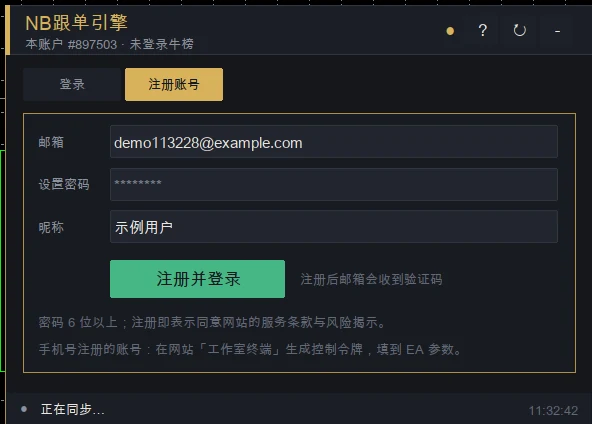
Signing up in the panel - 03
List a master account (optional)
Only needed if you want your own account to be a signal source; skip it if you only copy others.
- On the Master accounts tab tap “上架本账户” or “上架其他账户”, enter a name and the account’s read-only (investor) password, then tap “提交上架”. Do not enter the trading password here.
- The cloud then runs the first sync, usually within a few minutes; the account can be copied once it succeeds.
- If you choose Private, a 4-digit follow code is shown once. Write it down and give it to the people you allow to copy you.
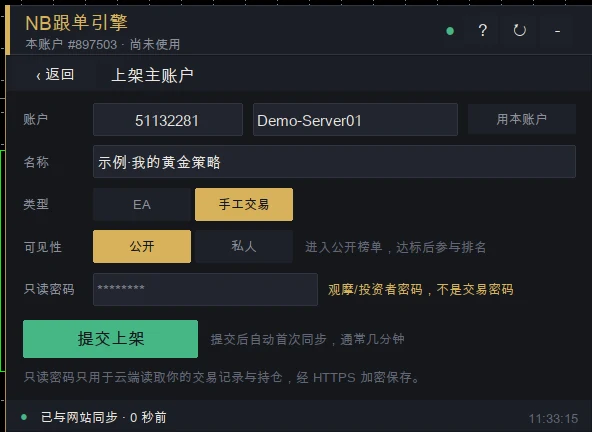
Listing a master account - 04
Add a copy account = start copying
Pick a signal source and enter the account’s trading password; once you confirm, the cloud starts copying for it.
- On the Copy accounts tab tap “+ 添加” (Add). It defaults to this account; choose “其他账户” (Other account) to enter another login and server.
- Pick the signal source: open a strategy in Strategy Square and, after reading its details, tap “用它添加跟单账户…”; or tap “选择信号源 ›” on the add page.
- Set the lot multiplier, enter the account’s trading password (not the read-only one) and tap “开始跟单” (Start copying). The cloud checks the connection in about a minute; “跟单中” or “已就绪” means the account is now following.
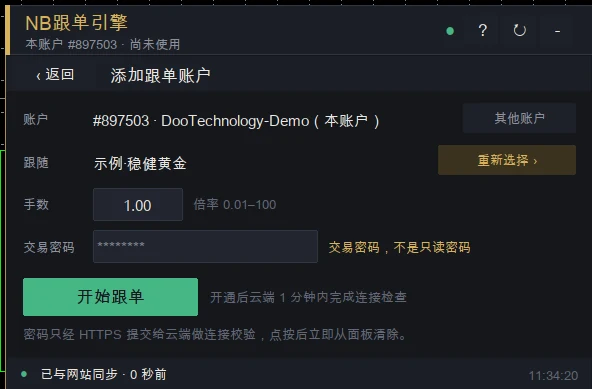
Adding a copy account - 05
Monitor and switch
All your copy accounts sit in one list; switch strategy in one step.
- The Copy accounts list shows the status, positions and floating P/L of every copy account you own. Tap a row for details to pause / resume, catch up, close positions or change lots.
- To change strategy, tap “切换” (Switch) on the signal source card, pick the new strategy and confirm. All your copy accounts move together: copied positions from the old source are closed first, then new trades from the new source are copied.
- To browse other strategies, sort Strategy Square by score, return, stability, longevity or newest, and open one to see its drawdown, win rate and recent curve. Past performance does not guarantee future results.
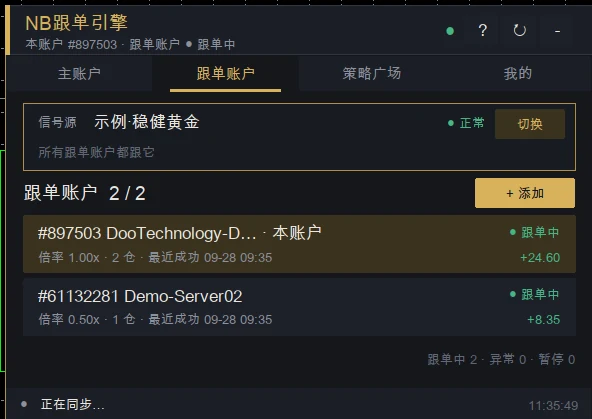
Copy accounts list 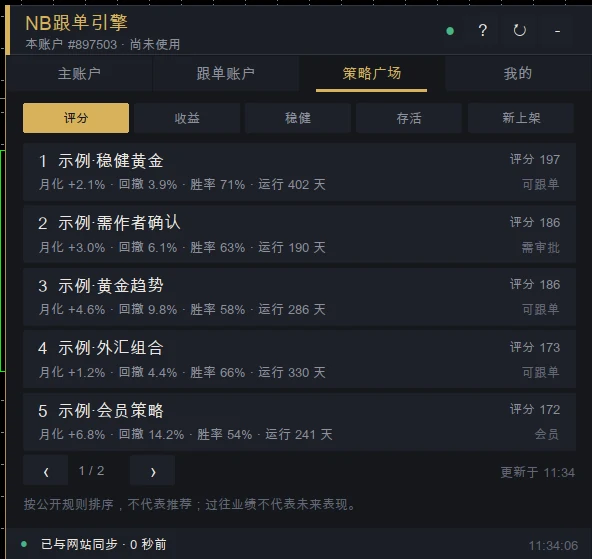
Strategy Square
Status colours at a glance
- Green(跟单中 / 已就绪 (Copying / Ready))Running normally.
- Gold(连接检查中 / 待作者确认 (Checking / Awaiting provider) etc.)The cloud is checking the connection or waiting for the provider to approve; usually just wait.
- Red(连接失败 / 预检未通过 / 品种不可执行 / 信号源暂不可用 (needs attention))Needs attention: for this account, re-enter the trading password on its detail page; for other accounts, fix them under My copy trading on the website; for symbol or source problems, contact support.
- Grey(已暂停 (Paused))You paused this account; tap “恢复” (Resume) to continue.
FAQ
Does copying continue after I close MT5?
Yes. Copy trading runs in the Niubang cloud, so your local terminal does not need to stay online; closing MT5 or your computer does not stop it.
Does the EA place orders in my MT5?
No. The EA does not place orders from signals itself; the panel only shows and controls things, and all copying is done in the cloud.
What is the difference between the two passwords?
The read-only (investor) password can only view and is used to list a master account. The trading password is used to add a copy account so the cloud can copy trades. Both are sent to the cloud over an encrypted connection and are never stored in the panel.
Do pause and stop close positions?
Pausing does not close positions: it only stops copying new trades, and copied positions stay open and still close when the master closes them (they are closed if the master is delisted). Stopping closes the copied positions in that account. Positions you opened yourself are never affected. After stopping, add the account again if you want to copy again. From panel v5.02 the pause prompt says the same. Older panels still say pausing closes positions, so they cannot pause an account that holds copied positions: download the latest version or pause under My copy trading on the website.
The verification code did not arrive?
Check your spam folder first; you can resend it from the panel after a minute.
Are the panel and the website in sync?
Yes. Both read the same data: what you do under My copy trading on the website shows up in the panel within about 10 seconds, and the other way round.
Copy trading involves risk and past performance does not guarantee future results. Still have questions? Tap “Support” on this page.